# Hiding apps you don't work on
https://mobilebuilds.app/guides/hiding-apps-you-dont-work-on/
Last updated: 2026-08-16
An App Store Connect account with twenty products makes for a long Apps tab. The
Apps filter cuts it down to the ones you care about, and the Runs tab follows.
The filter is part of [Mobile Builds+](/pricing/).
## Open the filter
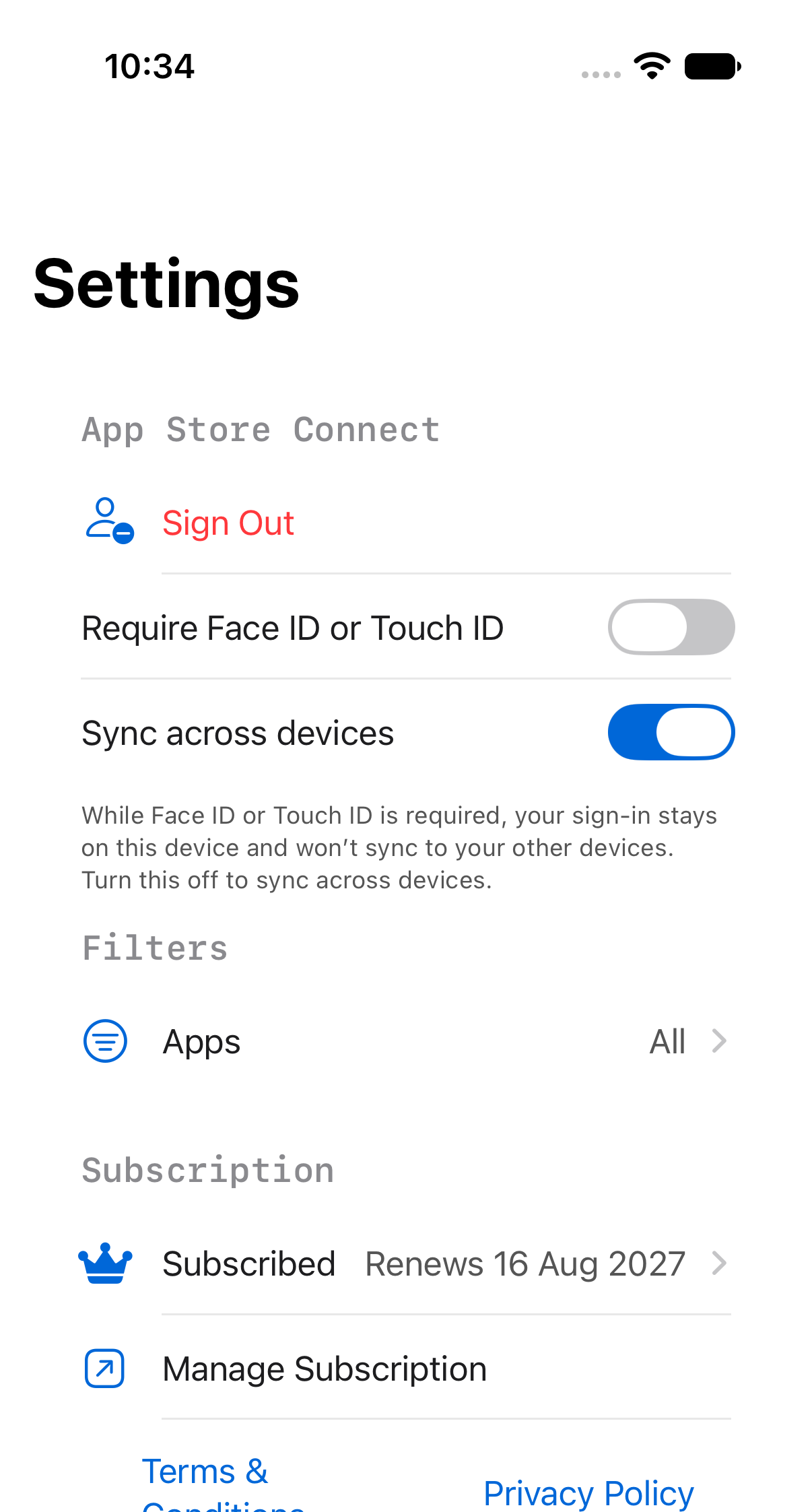
**Settings** → **Filters** → **Apps**. The row shows what's active: "All", or a
count.
## Pick your apps
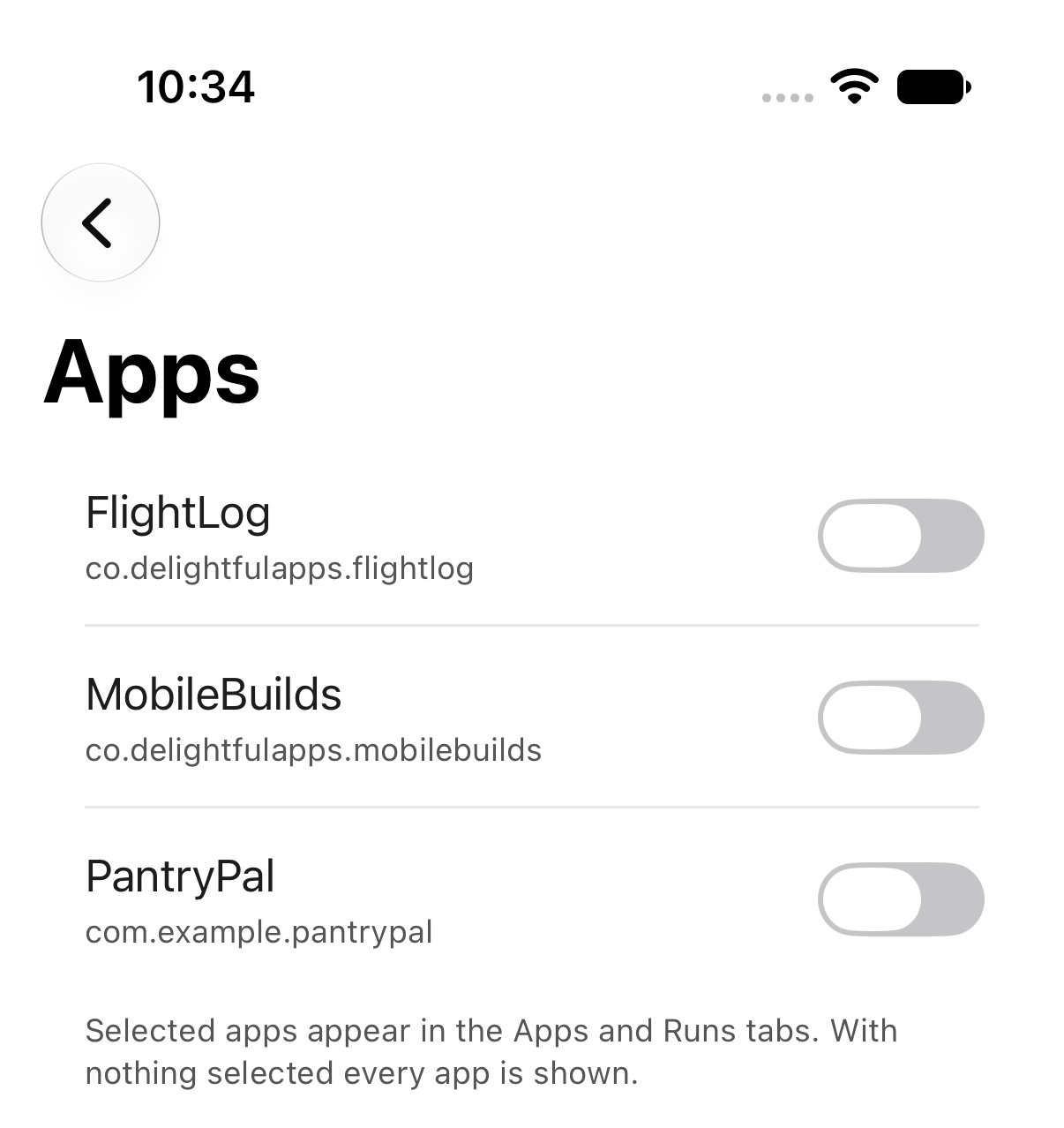
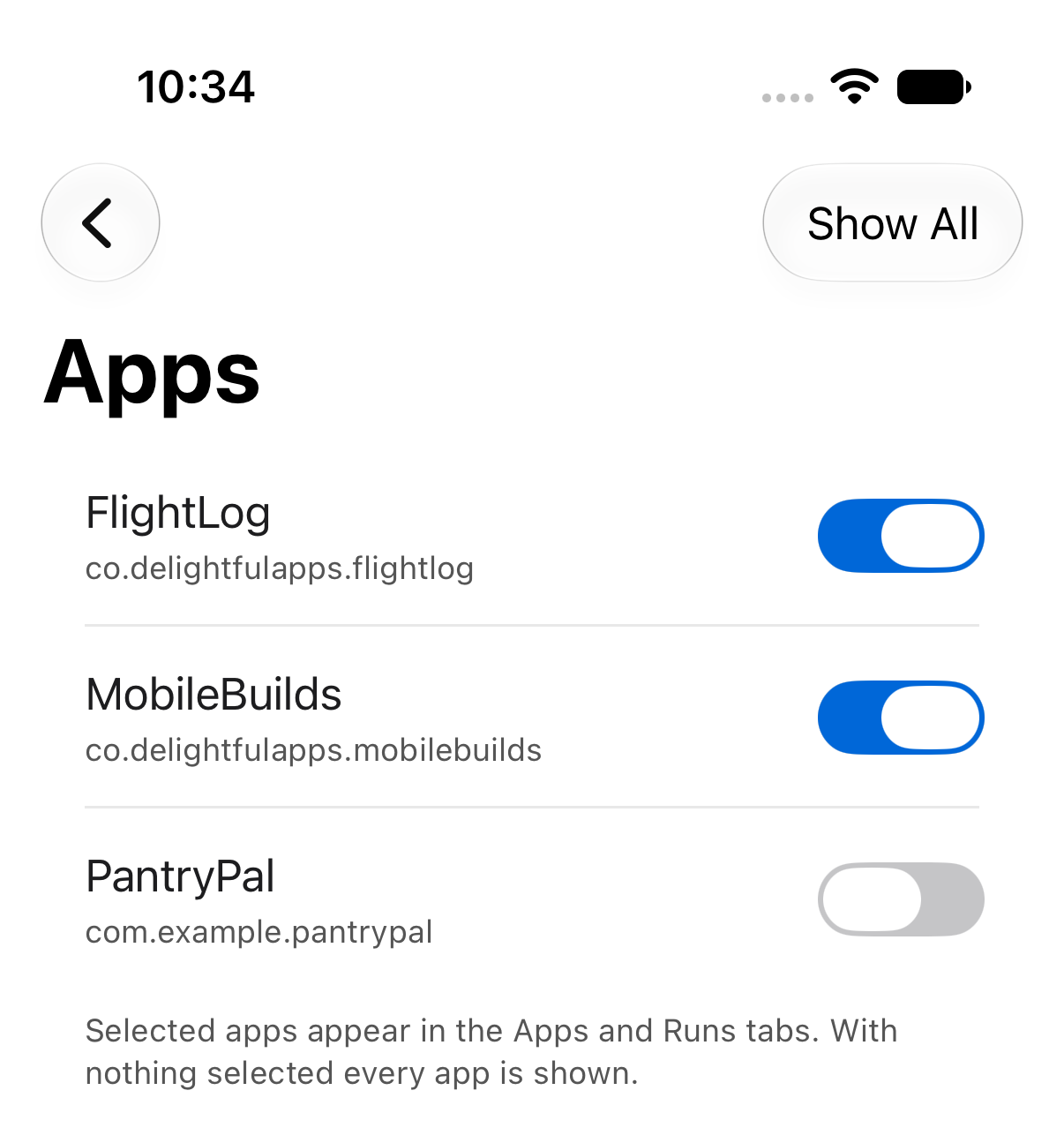
Turn on the ones you want to see.
With nothing selected, every app is shown — so an empty selection and selecting
everything come to the same thing.
## The result
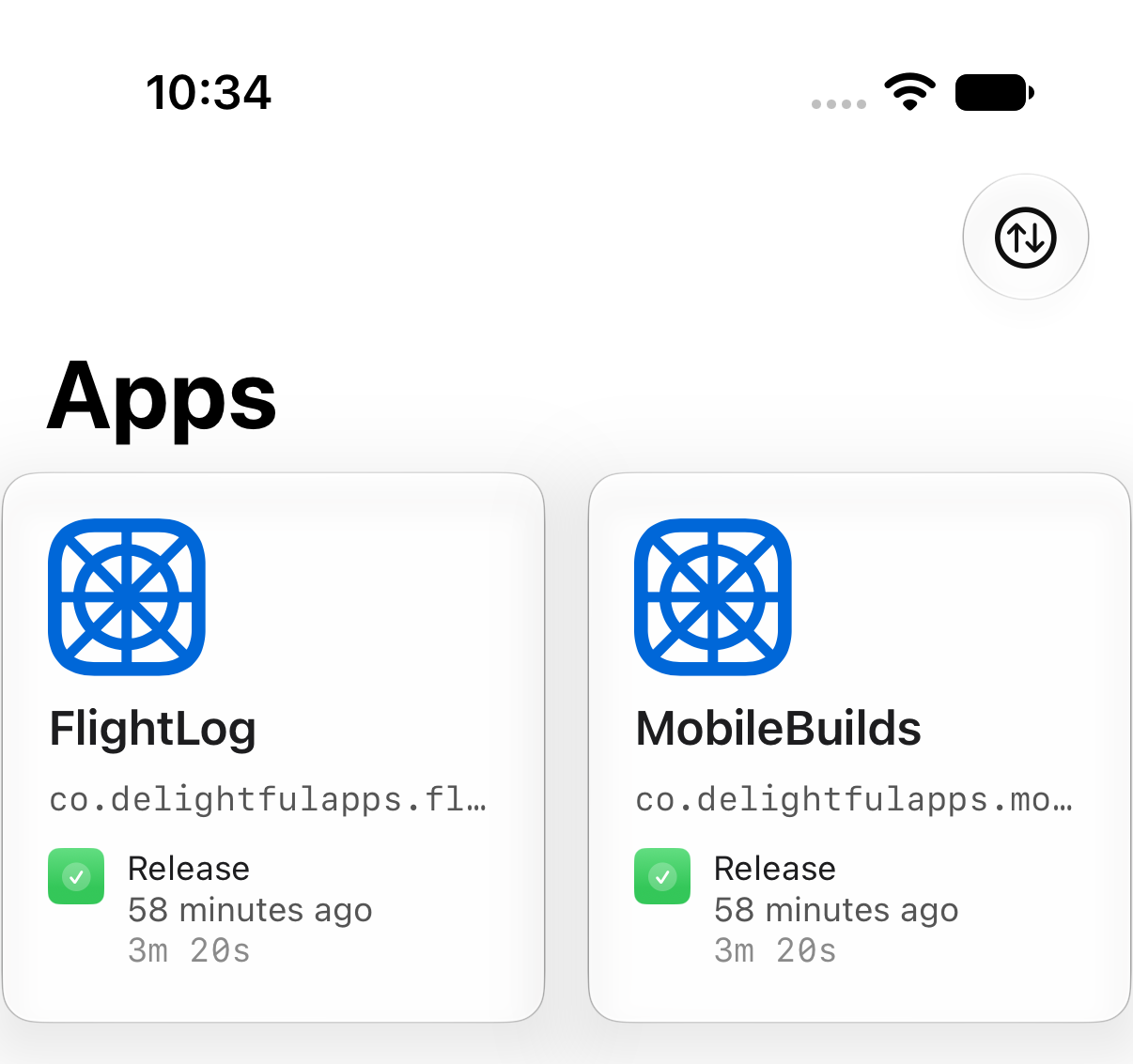
Both the **Apps** and **Runs** tabs now only show the apps you picked.
To undo it, tap **Show All** in the picker's toolbar.
If the picker says it can't list your apps, open the **Apps** tab once. The
filter reads from what's already loaded rather than fetching afresh.
## Related
- [Browsing your apps and workflows](/guides/browsing-your-apps-and-workflows/)
- [Starring apps and workflows](/guides/starring-apps-and-workflows/)
---
Mobile Builds — https://mobilebuilds.app/
Site index for language models: https://mobilebuilds.app/llms.txt