# Using Mobile Builds from Xcode
https://mobilebuilds.app/guides/using-mobile-builds-from-xcode/
Last updated: 2026-09-06
Xcode's coding assistant can read your Xcode Cloud builds directly, through a
plug-in that points it at the Mobile Builds MCP server. Ask about a failing run
in the same window you're fixing it in, without reaching for a browser or your
phone.
## Before you start
- **Xcode 26.3 or later** — earlier versions have no plug-ins.
- **Mobile Builds running and unlocked** on the same Mac, signed in to App Store
Connect. The plug-in reads through the app and holds no credentials of its
own.
- **The MCP server helper** — a menu bar app you download from Mobile Builds'
Settings and launch once. See [Installing the MCP server helper](/guides/installing-the-mcp-server-helper/).
- Without [Mobile Builds+](/pricing/) the assistant sees today's builds only,
the same limit the app has.
## Add the plug-in
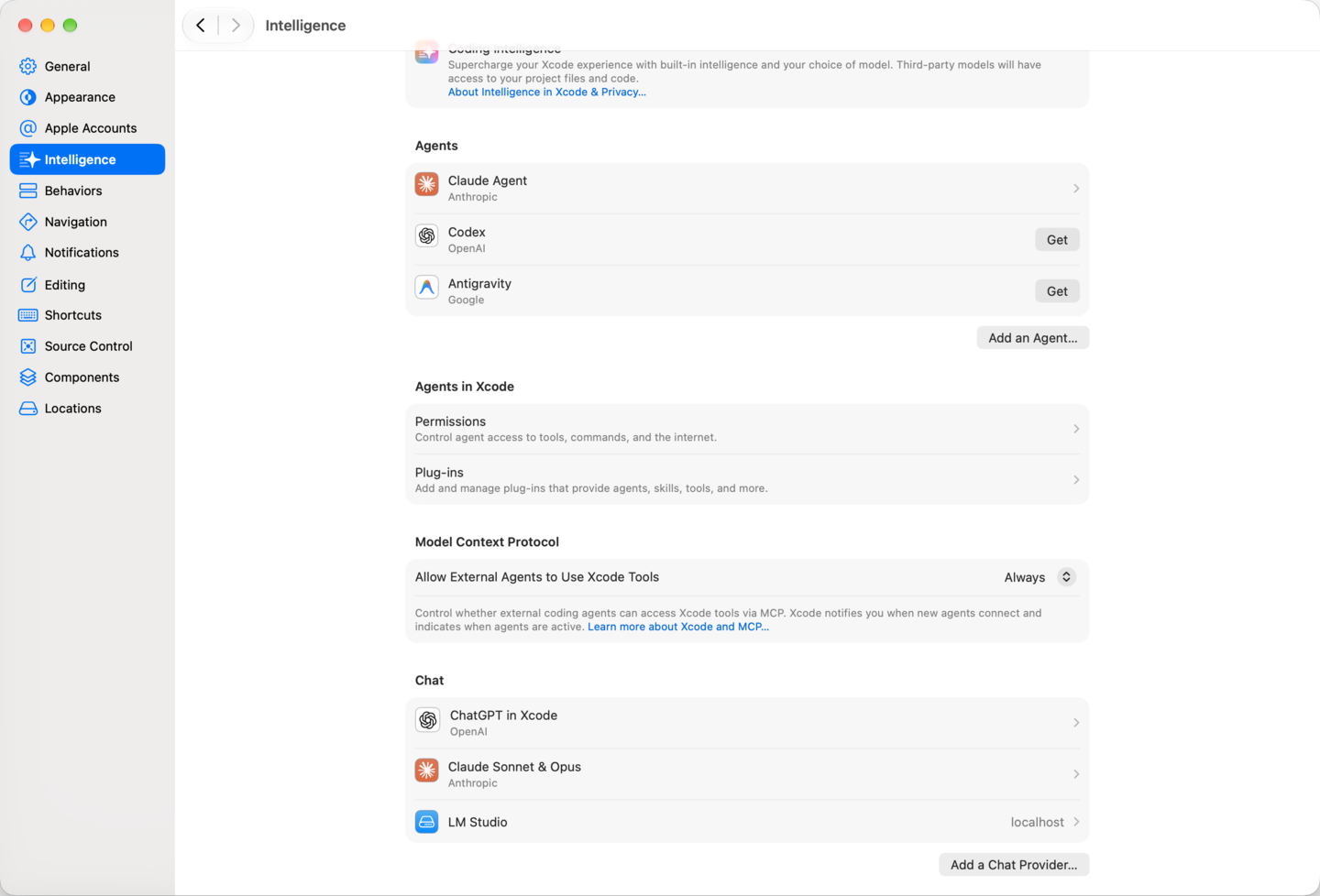
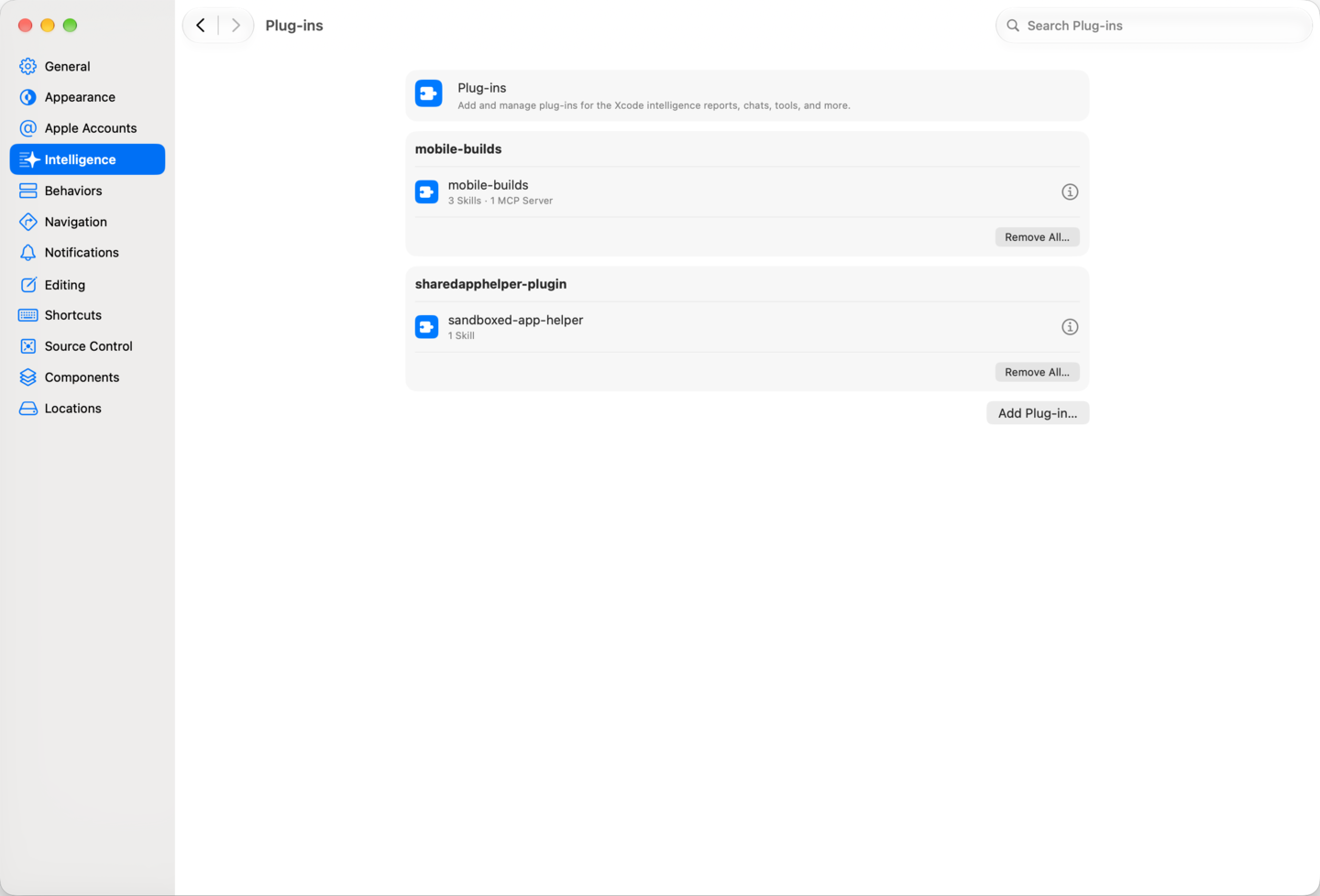
Open **Settings → Intelligence**. Plug-ins live under **Agents in Xcode**,
next to Permissions.
The **Model Context Protocol** section further down the same pane is the
opposite direction — outside agents reaching into Xcode's own tools — and has
nothing to do with this.
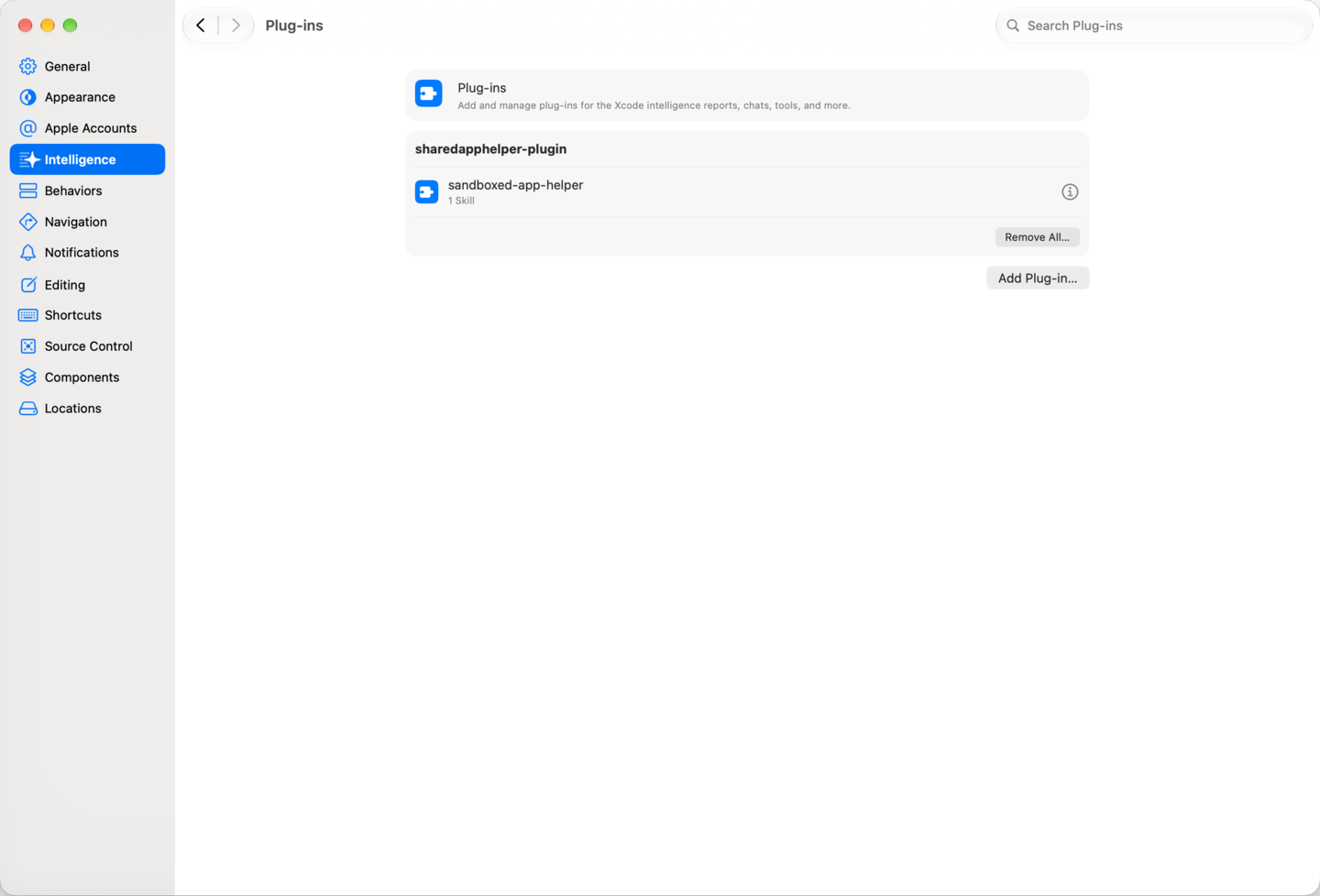
Choose **Plug-ins**, then **Add Plug-in…**.
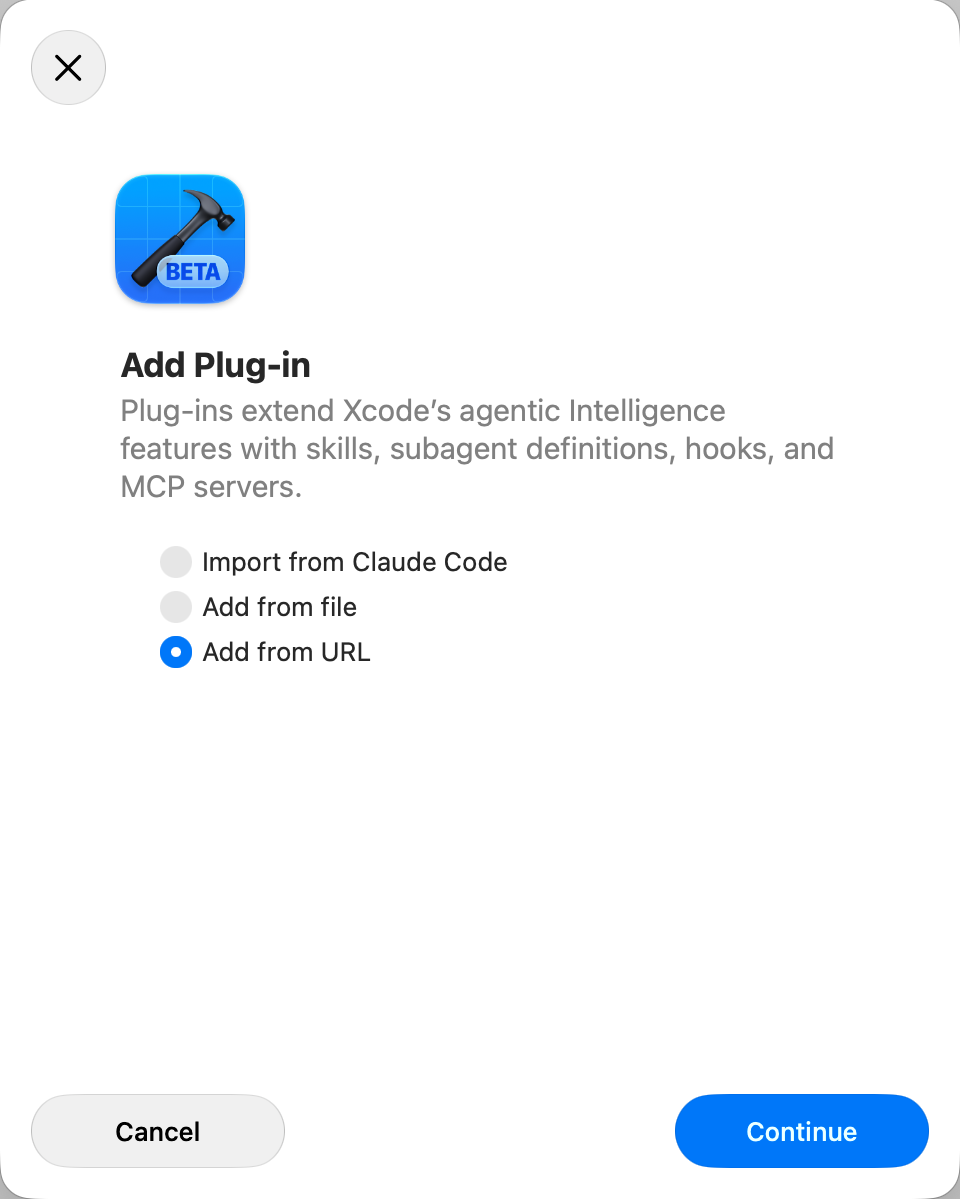
Pick **Add from URL**.
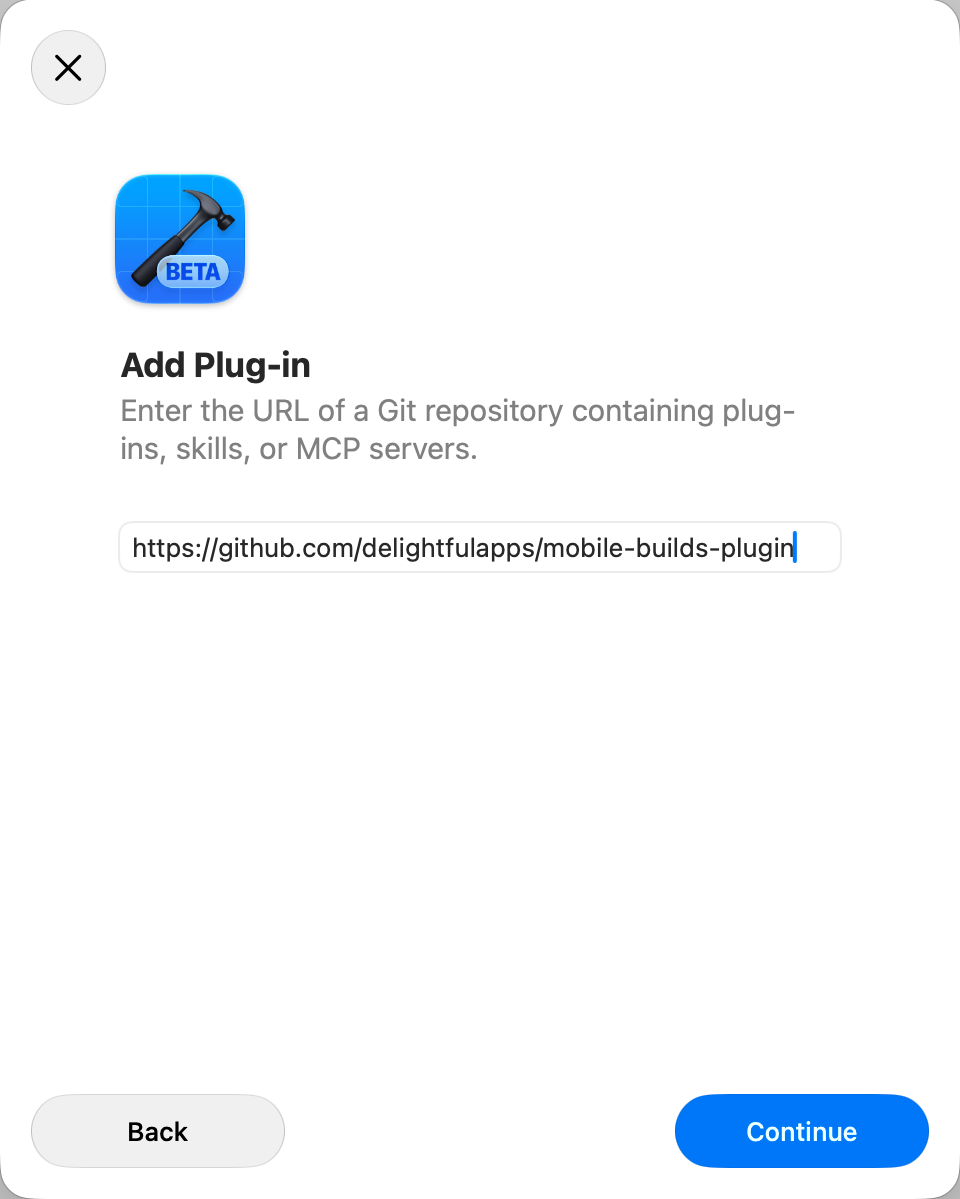
Enter `https://github.com/delightfulapps/mobile-builds-plugin` and continue.
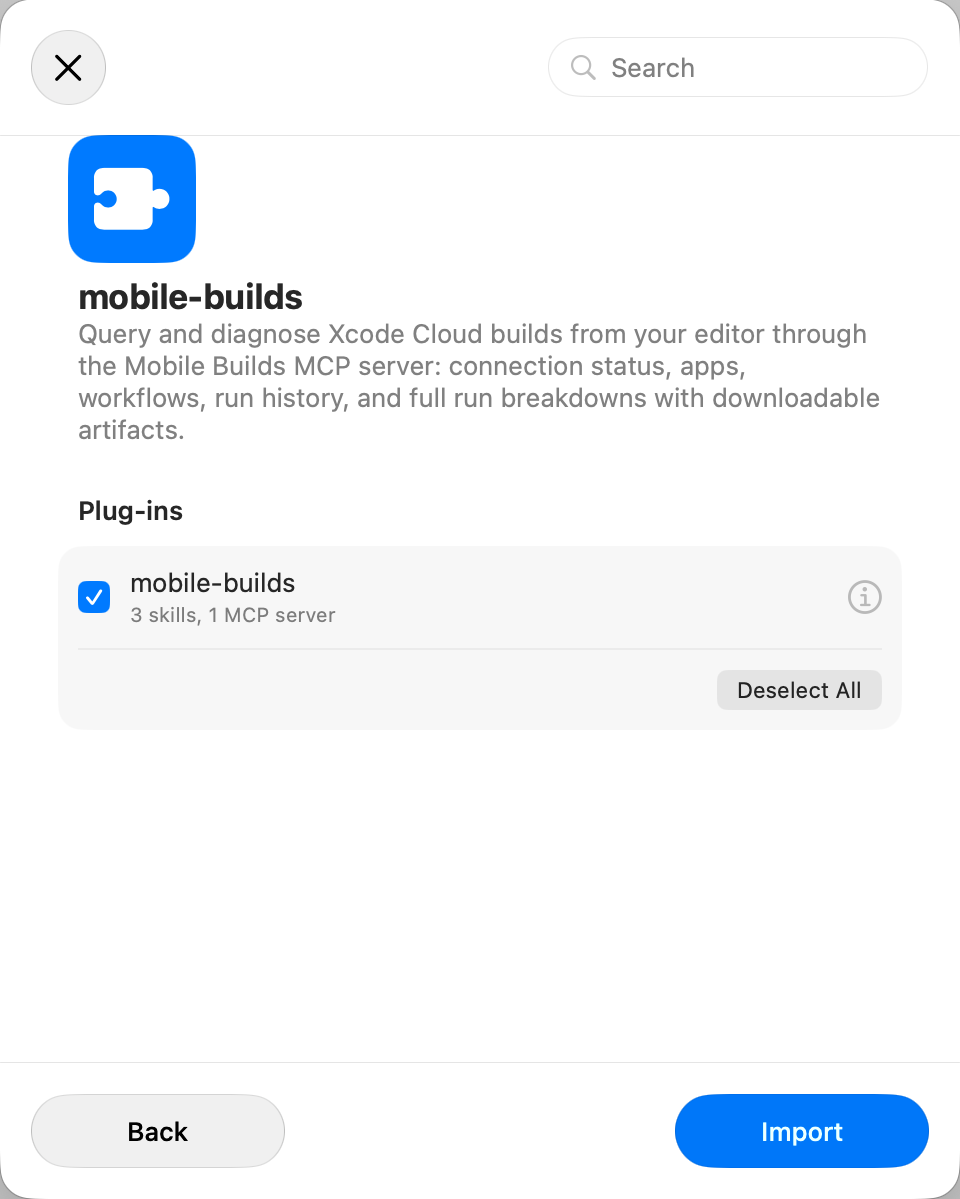
Xcode reads the repository and shows what it found: one plug-in, `mobile-builds`,
carrying three skills and one MCP server. Leave it ticked and choose **Import**.
It then sits in the Plug-ins list, and the MCP server is registered along with
it.
## Check it connected
Ask the assistant "is Mobile Builds connected?". It walks the chain — the app,
the helper, the MCP server, the plug-in — and names whichever part isn't
answering, rather than handing you a bare connection error.
## What you can ask
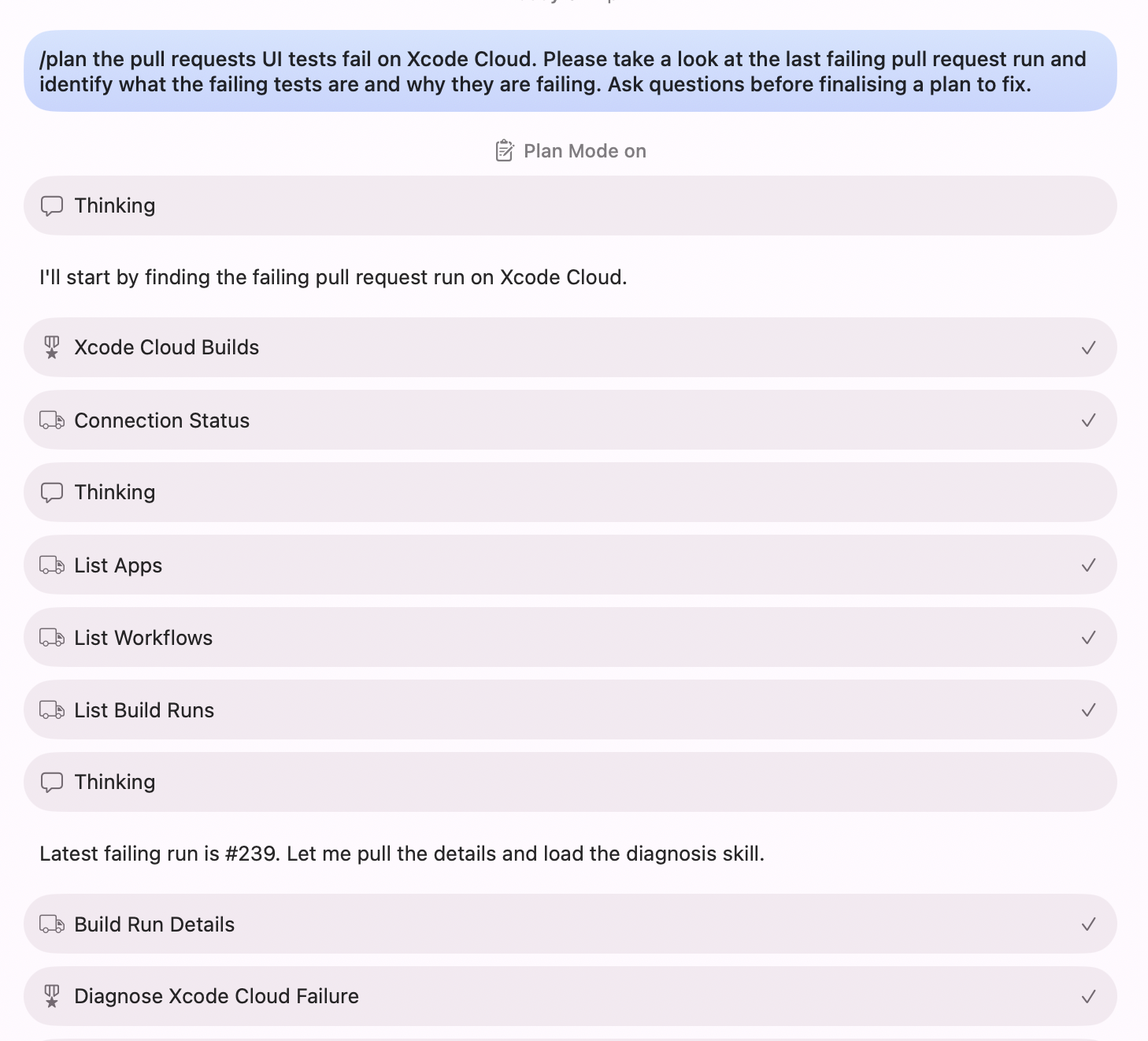
From then on the assistant reaches for the plug-in on its own whenever a
question is about builds.
- **Apps, workflows and run history** — status, branch, commit, duration, and
what triggered each run.
- **Why a run failed** — the failing step, the result bundle downloaded and
read, and the source lines rebased onto your working copy so they match the
file open in front of you.
- **Why nothing is answering** — the connection check above.
Everything the plug-in does is read-only. Starting, re-running and cancelling
builds still happen in the app — see [Starting a build from your phone](/guides/starting-a-build-from-your-phone/).
## If you need a different port
The MCP server binds port `8723` by default, and the menu bar helper shows the
endpoint it actually bound. To point Xcode somewhere else, edit the
`mobile-builds` entry under **Settings → Intelligence → MCP servers**. Editing
a project's `.mcp.json` after the plug-in is installed does nothing — Xcode
already has its own copy of the configuration.
## In Claude Code
The same plug-in installs there with `/plugin install delightfulapps/mobile-builds-plugin`.
The skills arrive namespaced — `mobile-builds:xcode-cloud-builds` and the rest —
but they do the same work.
## Related
- [Reading a build run](/guides/reading-a-build-run/)
- [Finding a failing test](/guides/finding-a-failing-test/)
- [Downloading build artifacts and logs](/guides/downloading-build-artifacts-and-logs/)
---
Mobile Builds — https://mobilebuilds.app/
Site index for language models: https://mobilebuilds.app/llms.txt