Creating and editing workflows
Last updated
Workflows aren't read-only in Mobile Builds. You can create one, change its triggers and actions, and delete it, all from the app.
Create a workflow
Open an app and tap + beside Workflows.
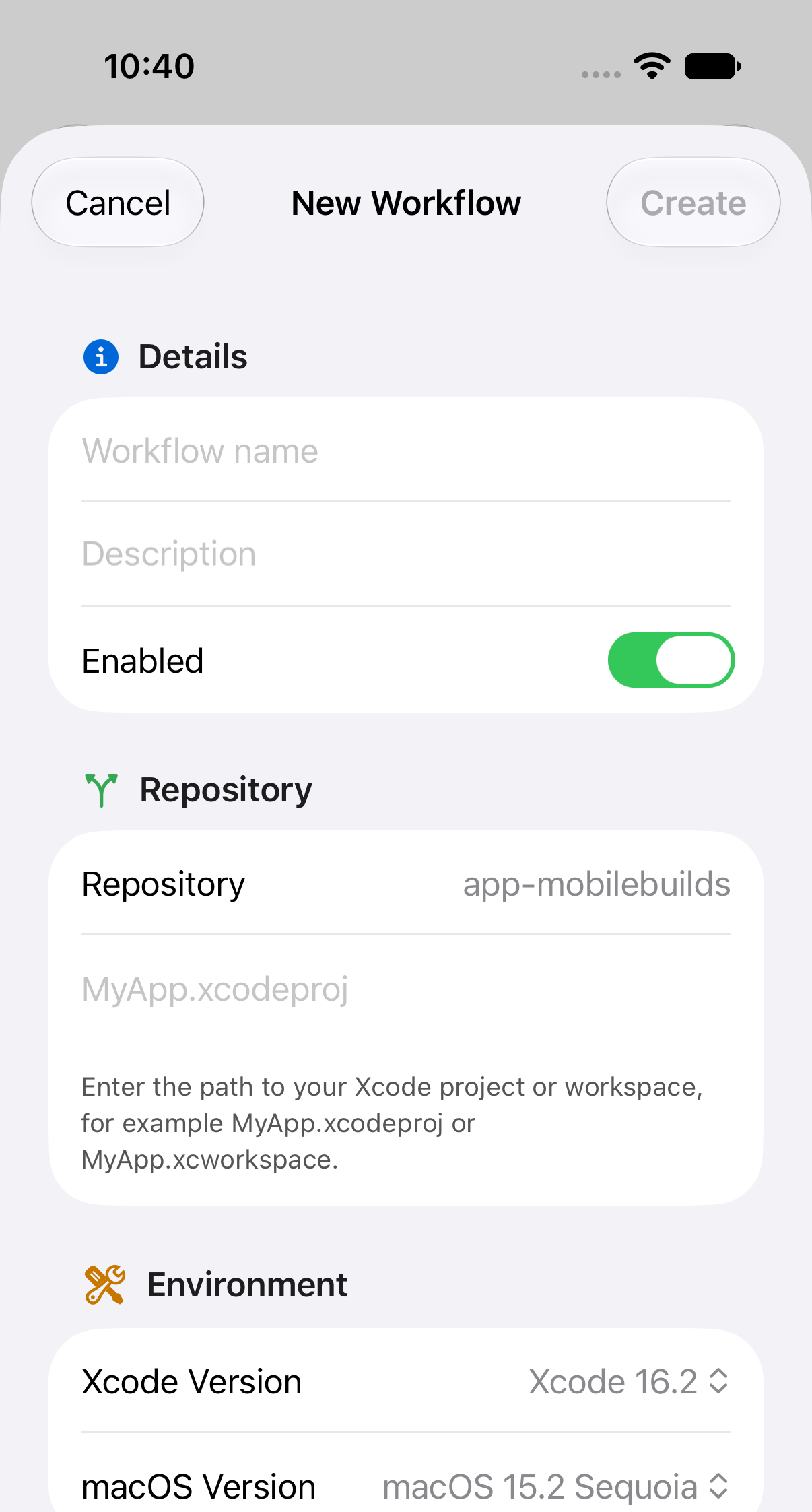
Work down the sheet:
- Details — name, description, and whether it starts out enabled.
- Repository — the connected repository, plus the path to your project or
workspace, like
MyApp.xcodeproj. Set only when creating. - Environment — Xcode and macOS versions.
- Triggers — what starts a build. Branch and tag patterns are comma-separated; leave a field empty to match anything.
- Actions — what a build does. Each action has a type, scheme, platform and destination, and can be marked as required to pass.
Create stays dimmed until the sheet has what it needs. Once it saves, the new workflow appears in the app's Workflows list.
If the repository picker is empty, connect a repository to the app in App Store Connect first — Xcode Cloud won't create a workflow without one.
Edit a workflow
Open the workflow and tap Edit. The same sheet appears with its current settings, minus the repository fields.
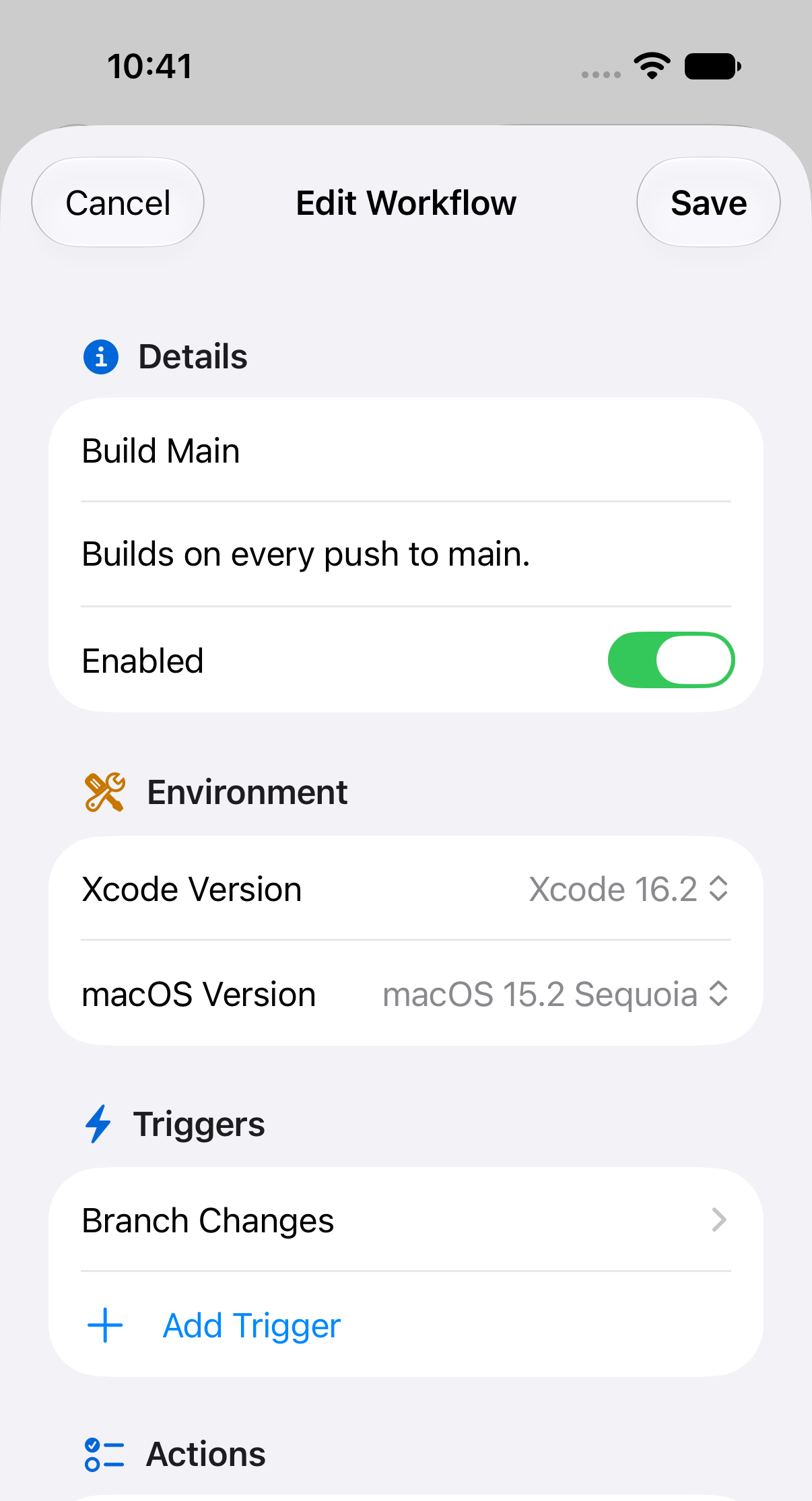
Turning Enabled off is a good way to pause a noisy workflow without losing its configuration.
Delete a workflow
Delete Workflow is at the bottom of the edit sheet, and asks first.
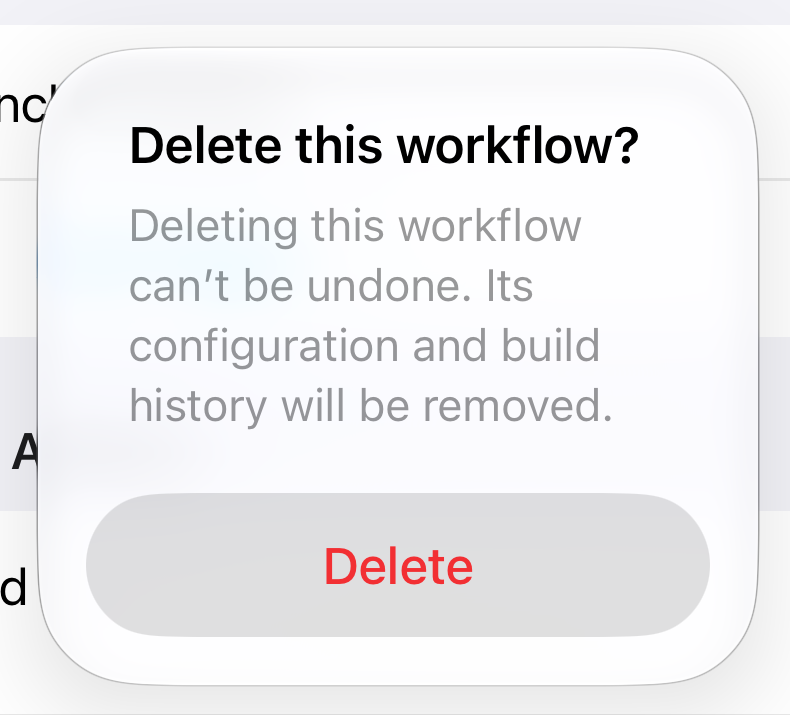
This can't be undone — the configuration and the build history both go.